How to Add Locations and Split models using dataflow

This question has come up a couple of times since we removed the Location Editor from Simplebim 11. The basic dataflow for importing location prisms, adding location information, and splitting the model based on the location prisms is quite simple.
-
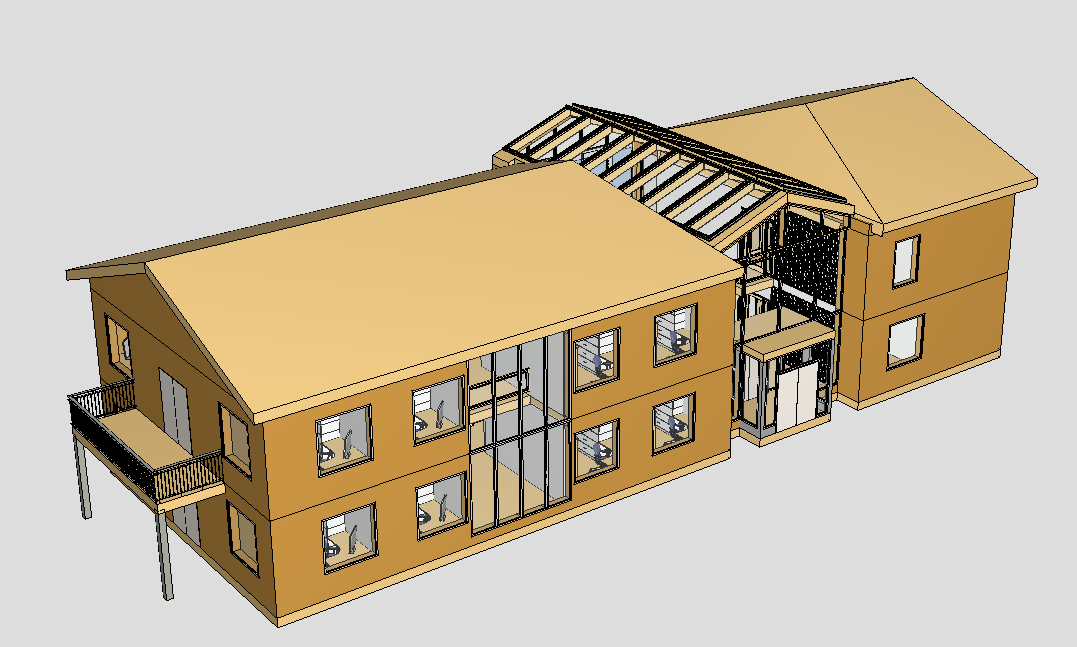
First, we need a model. This is the model I am going to use in this example to add location information and split it.
-
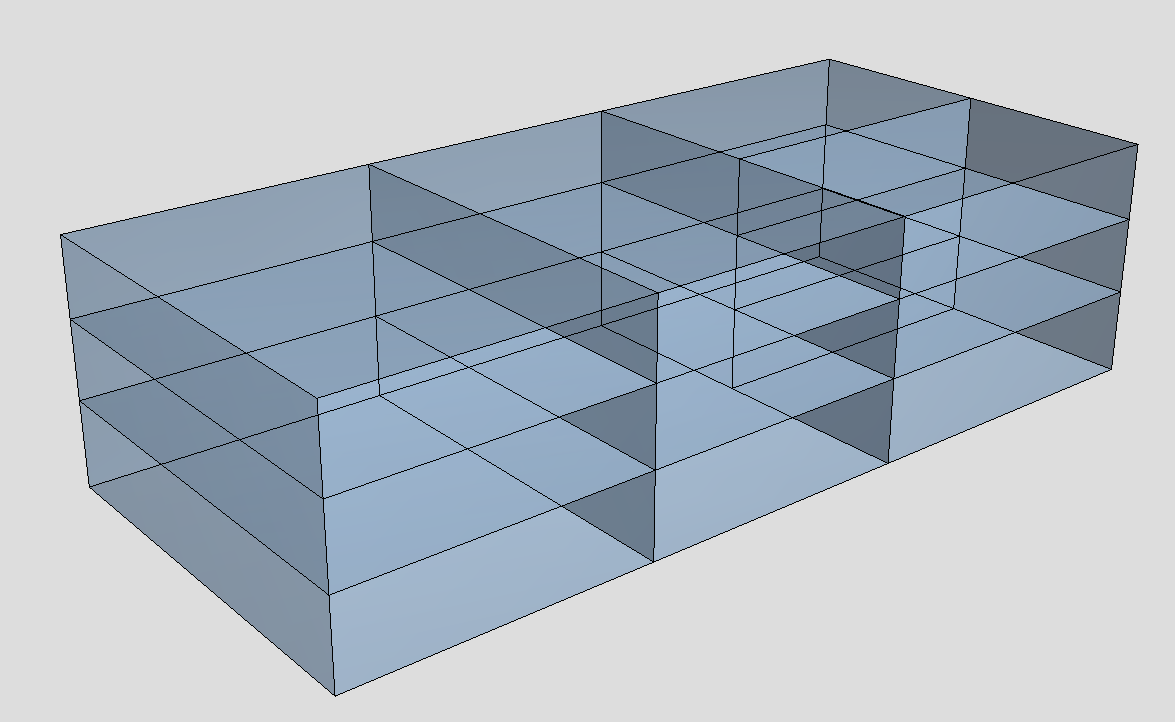
Next, we need the location prisms. These prisms are in a separate IFC file, and each prism contains location information that we will copy to the objects inside the prism.
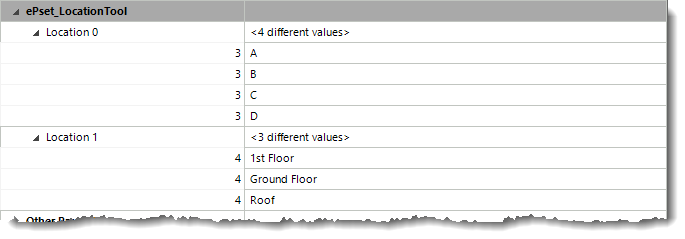
This is the location information that we need. We are going to copy the property values from “Location 0” and “Location 1” to the objects inside the prism.
-
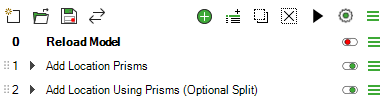
Then we need to configure the dataflow. For this task, we only need two steps.
-
The first step is the “Add Location Prisms” step. This step imports the location prisms from the IFC file that contains them and groups the prisms into the “Location Prisms” group. You can also set the visual appearance for the location prisms if needed. You can read more about the configuration options in this support article: Dataflow Add Location Prisms
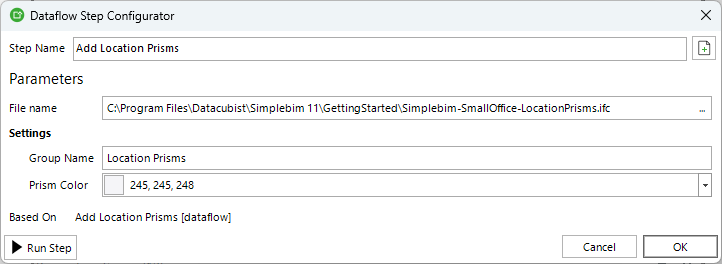
-
The second step is the “Add Location Using Prisms (Optional Split)” step. This step adds the location information to the objects by copying the property values from the location prisms to the objects. By default, it uses the objects in the “Location Prisms” group that the previous step generates. In this example, I enable the “Split Objects” option to split objects in the “Slab” and “Wall” object classes based on the location prism geometry. You could also use object groups or object selections as the objects to split, if needed. You can read more about the configuration options in this support article: Add Location Using Prisms Optional Split
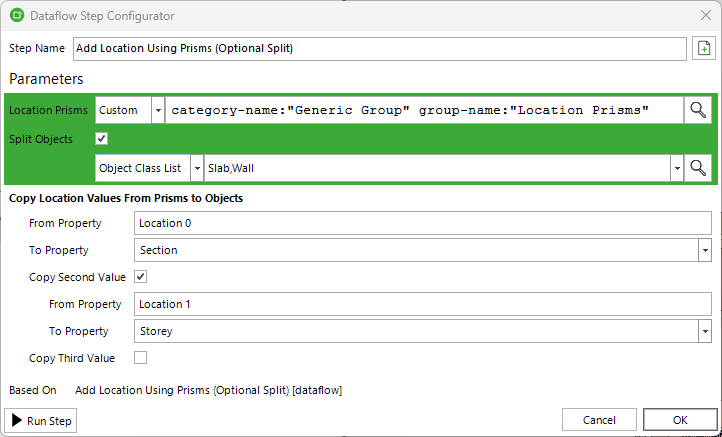
-
-
Now we are ready to run the dataflow we created.
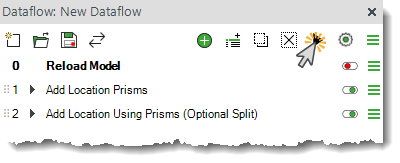
-
This is the final result, colorized based on the section.
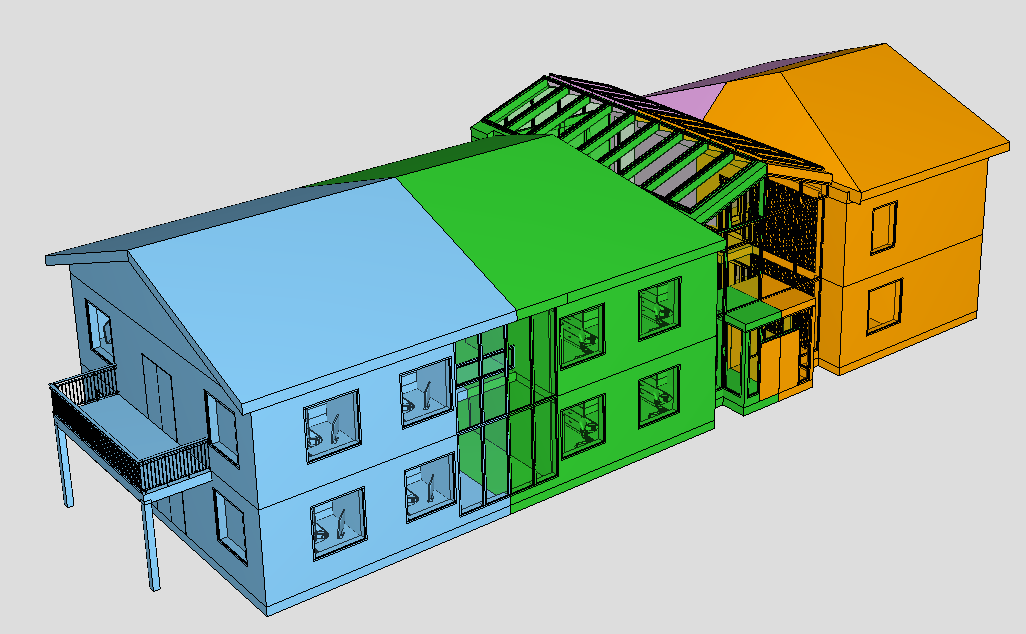
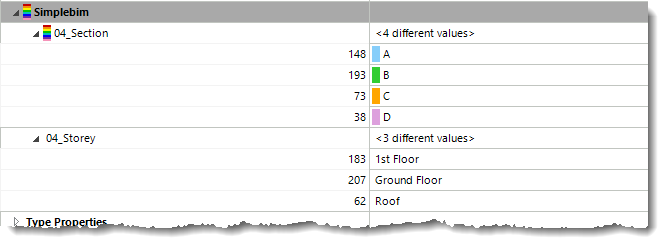
You can try creating this dataflow yourself using the models included in the Simplebim installation:
- Small Office sample: C:\Program Files\Datacubist\Simplebim 11\GettingStarted\Simplebim-SmallOffice-Arch.ifc
- Location prisms: C:\Program Files\Datacubist\Simplebim 11\GettingStarted\Simplebim-SmallOffice-LocationPrisms.ifc
Comments
2 comments
If you have used locations in Simplebim 10 (or older) then you are familiar with the ‘Location 0’, ‘Location 1’ etc. properties used in the sample location prisms that Gio uses in this example. However, starting with Simplebim 11 you can use any property as the location information. For example if you use spaces as location prisms you can directly use for example ‘Space Number’ as the ‘From Property’ in the configuration, and you no longer have to copy this information first into one of the old location properties. We thought you might appreciate this simplification in the process.
Version 10 was a bit easier, especially for those who used it a lot.
But Version 11 is so much more powerful!
New method, more potential.
Please sign in to leave a comment.