Count everything, but only once!

When you calculate anything from a model it is important that you calculate everything you need to calculate and that you don't double-count anything. Simplebim can help you prepare your model for calculation in the following ways:
- The first task is to decide what you calculate from the model. For this you use the trimming capabilities of Simplebim and include only the objects you need to calculate. For example if you don't calculate furniture and fixtures you can start by simply excluding those objects.
- When you have everything you need to calculate you should exclude duplicates. Duplicates are usually caused by copy&paste operations gone wrong the model authoring tool. You can exclude duplicates using the Exclude Duplicate objects dataflow that is always installed with Simplebim.
- Duplicate objects are one thing but a more subtle problem are overlapping objects. Walls can for example overlap horizontally in wall intersections or vertically when walls from a lower building storey push into walls on the next storey. Depending on the required accuracy these issues can be neglected or they must be solved, but in any case it is good to be aware of the situation. With the Overlapping Objects -tool you can create new objects that represent the overlaps and you can very easily gain insights about any issues and how serious the issues are relative to the accuracy requirements of your calculation.
- Assemblies (objects that contain other objects) can cause problems because you might accidentally calculate both the assembly and the parts, which would lead to double-counting. For example a wall might have the layers of the wall as parts (building element part). If you want to eliminate this possible source of errors you can decide how to deal with assemblies. If a wall is for example a pre-cast concrete element and you want just the wall, you can use the Assemblies Simplify -tool to remove the parts. But if you want to calculate the concrete, reinforcement and formwork of a footing separately, you can use the Assemblies: Remove -tool to remove the footing object and leave only the parts in the model. This way the pre-cast concrete elements can only be calculate as a whole and the footings only through their parts.
So far so good. The next task is to group (or classify) the objects you need to calculate. For this you can use the Simplebim groups with the following setup:
-
Create a group that contains all the objects you need to calculate. This group can be rule based or manual depending on what it easiest for you. There are two important settings for this first group.
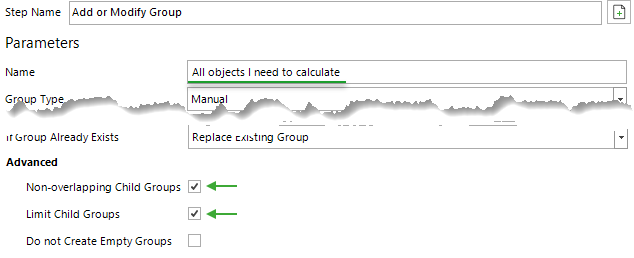
‘Non-overlapping Child Groups’ makes sure that each object can only be assigned to one of the child groups of this group. This way you cannot classify an object more than once because when you classify it a second time the first classification is automatically removed.
‘Limit Child Groups’ makes sure the child groups can only have objects that you added to the parent group. This way the child groups won't accept for example the furniture and fixtures you are not calculating, even if you by accident try to classify such objects -
Next add an ‘Ungrouped Group’ to the parent group from step 1.
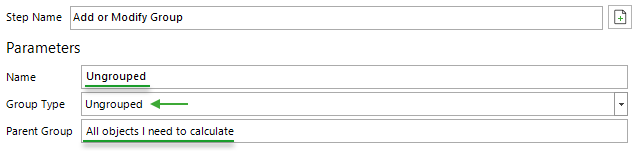
This group is your to-do list as it will dynamically contain all the objects that you assigned to the parent group but that are not yet included in any child group.
-
In the final step you add the child groups that correspond to to classification you need for your calculation.
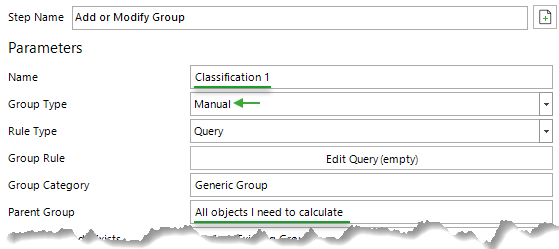
The child groups must be manual or the Non-overlapping Child Groups -logic of the parent group won't work. But you can use a rule for populating the manual group or create a Manual Empty group and simply drag&drop objects to the child groups, or initially populate the group with a rule and fix the contents by adding/removing objects via drag&drop. You can even use the Generate Groups by Text Property - dataflow for generating the child groups if the model already has some useful information.
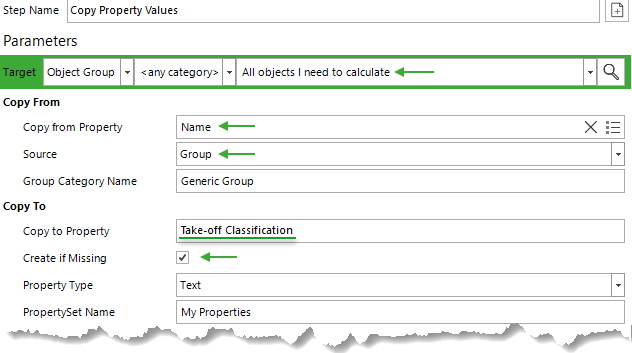
When the model is classified according to your needs, and the classification is visually verified using groups, you most often need to have the classification information as properties instead of groups. For this you can copy the name of the group into a property. For example if an object is put into a ‘Concrete wall elements’ -group you can copy this information into for example a ‘Take-off Classification’ property.
Ok, that was quite a bit, but calculating from models is serious business. There are many quick&dirty solutions that make things seem easier, but when you need to be sure your calculation is accurate these are the steps that get you there. And once you have set up the process according to your needs and used it a few times you will realise that it is after all not that complicated. But if you have ideas how to make this workflow better or realize that we have missed something, please let us know in the comments below!
Comments
1 comment
This touches the core of model-based quantity work: both errors - not considering all-and-only the relevant objects, and counting objects more than once - are equally damaging. In my experience, both indeed come from how the model is prepared (not from the calculation itself), so the model is where corrective and targeted action belongs.
The other point about the quick&dirty fixes is also, unfortunately, another 'reality' (who hasn't done them?): they might work for a single model, but they don't scale.
Investing a one-time effort in setting those steps (trimming, de-duplication, assembly handling, and classification) makes all models reliable for the purpose - and quantity calculations repeatable and shareable.
I'd also be very interested to hear what other 'realities' quantity surveyors, cost estimators, procurement officers, and construction managers in this Community are encountering with quantities. As well as ideas to optimize steps in Jiri’s workflow.
Please sign in to leave a comment.