Small trick for managing property sets Featured

A few weeks ago I found a very simple but useful trick in Simplebim.
When I work in Simplebim, I have multiple “Properties” windows open. One day I stumbled upon a feature that lets me have my own chosen property set always visible. Basically, in first Properties window I have my chosen Property Set, the other has everything else, so I don't need to waste time on searching to find certain data. No need to dig through a mountain of properties.
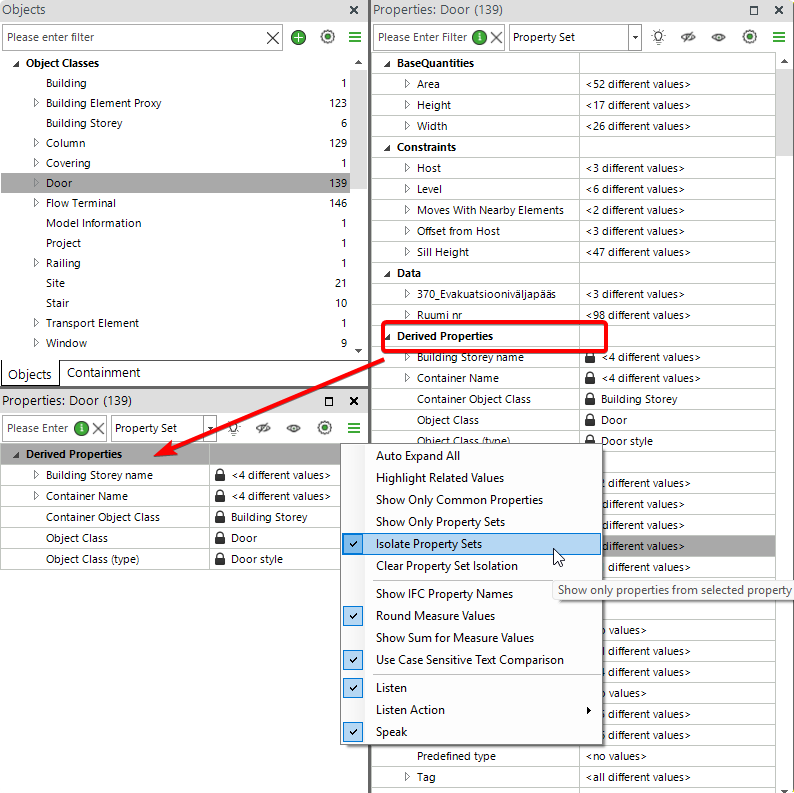
Pro level users already know about it as I learned a week later in Tarcon Day, where Maria introduced Base Model concept :)
Small things make life a lot easier :)
Comments
4 comments
Multiple property palettes are a great thing!
https://community.simplebim.com/hc/en-us/articles/21273291583772-Create-Your-Own-Workspaces#h_01K0PQ6DCFFKC2F4HYZ56CEAZ8
Thanks for sharing another practical trick Piret Lindma !
I suggest to follow Piret for other smart tips - like this one, when the model has too much information: https://community.simplebim.com/hc/en-us/community/posts/26522626386460-Too-Much-Information-Regex-to-the-Rescue
I never thought about ‘Isolate Property Sets’ in this way. The original purpose was to hide all properties except a company's own properties: Isolate the company property set and use ‘Not Grouped’. But it is great to see how innovative minds come up with new uses for different functionality!
Here is another multiple Properties palette ‘trick’. The first step is to understand the ‘Highlight Related Values’ functionality.
When this option is on, the values used by the selected objects are highlighted for all other properties. In the picture below the walls with type ‘315’ have heights 387mm, 392mm, 400mm etc. This means that there are 33 walls in the model with the type ‘315’ and out of these 33 walls some have the height 400mm, but none have the height 2750mm.
This is a great way to see how values belong together, like what kind of rooms can be found on a certain floor.
Now that you understand the basic add another Properties palette to the workspace and configure it's ‘Listen Action’ to ‘Highlight Related Values’
Now when you select a property value (or values) in the first Properties palette the second Properties palette shows the related values.
This way you can set up a workspace that gives you this information in a clear way and you don't loose focus from what you are trying to find out.
Please sign in to leave a comment.