All Languages are Welcome in the Data Conversation! Pinned Featured

In our Community we can write in the language that helps express work, questions, and ideas most clearly and comfortably.
A recent test demonstrated how effectively the browser's automatic translation feature can support our conversation, both on computers and mobile devices: the ideas were clear and the value was fully there. Obviously, the Community Team will continue to observe how this develops across different contexts and languages.
What connects us is working with BIM data: our approaches and challenges. Let's exchange about this, without language barriers.
→ On that note:
The more freely we write, the better we can share and learn!
3 Steps to Use the Browser Translator
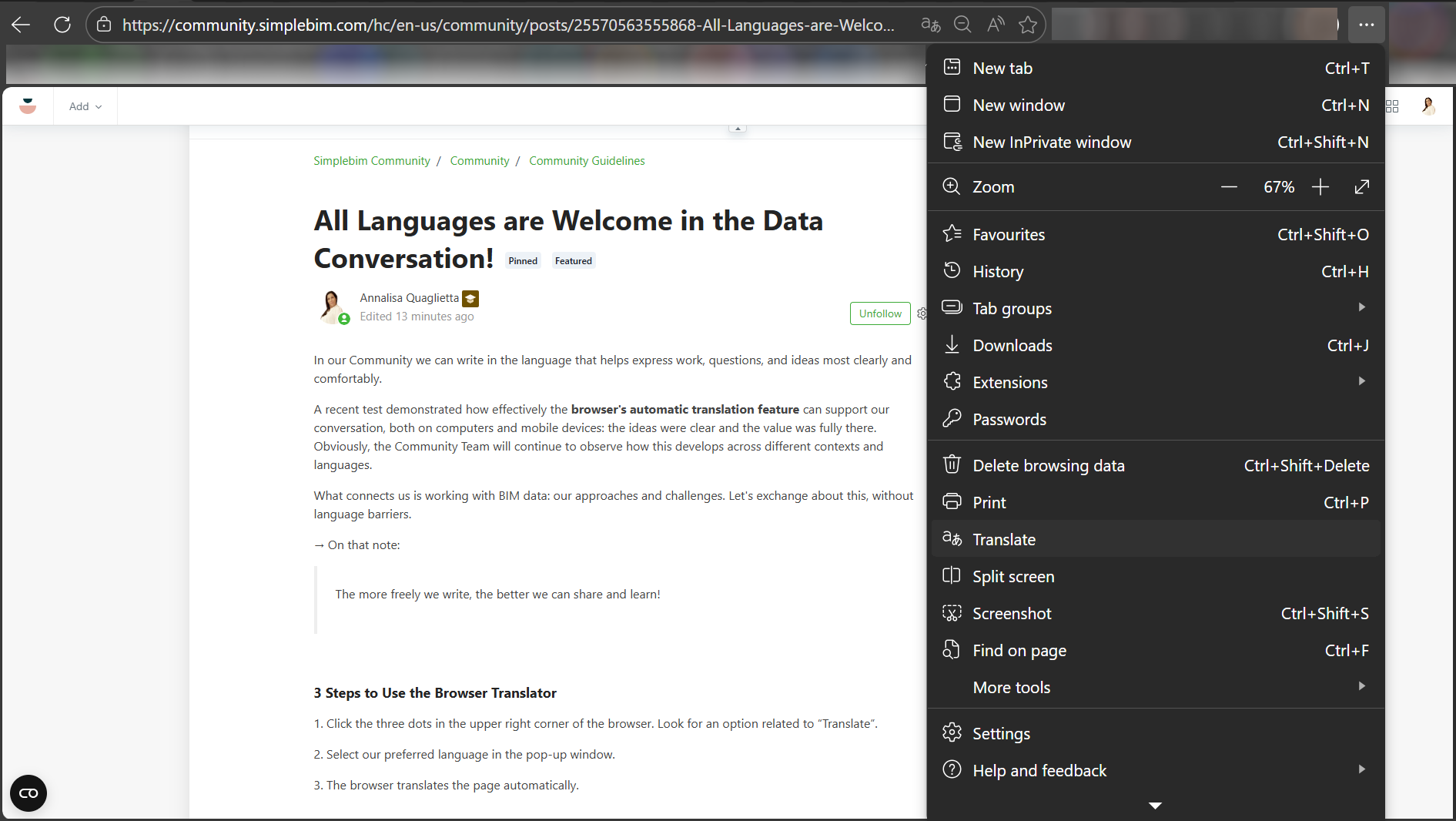
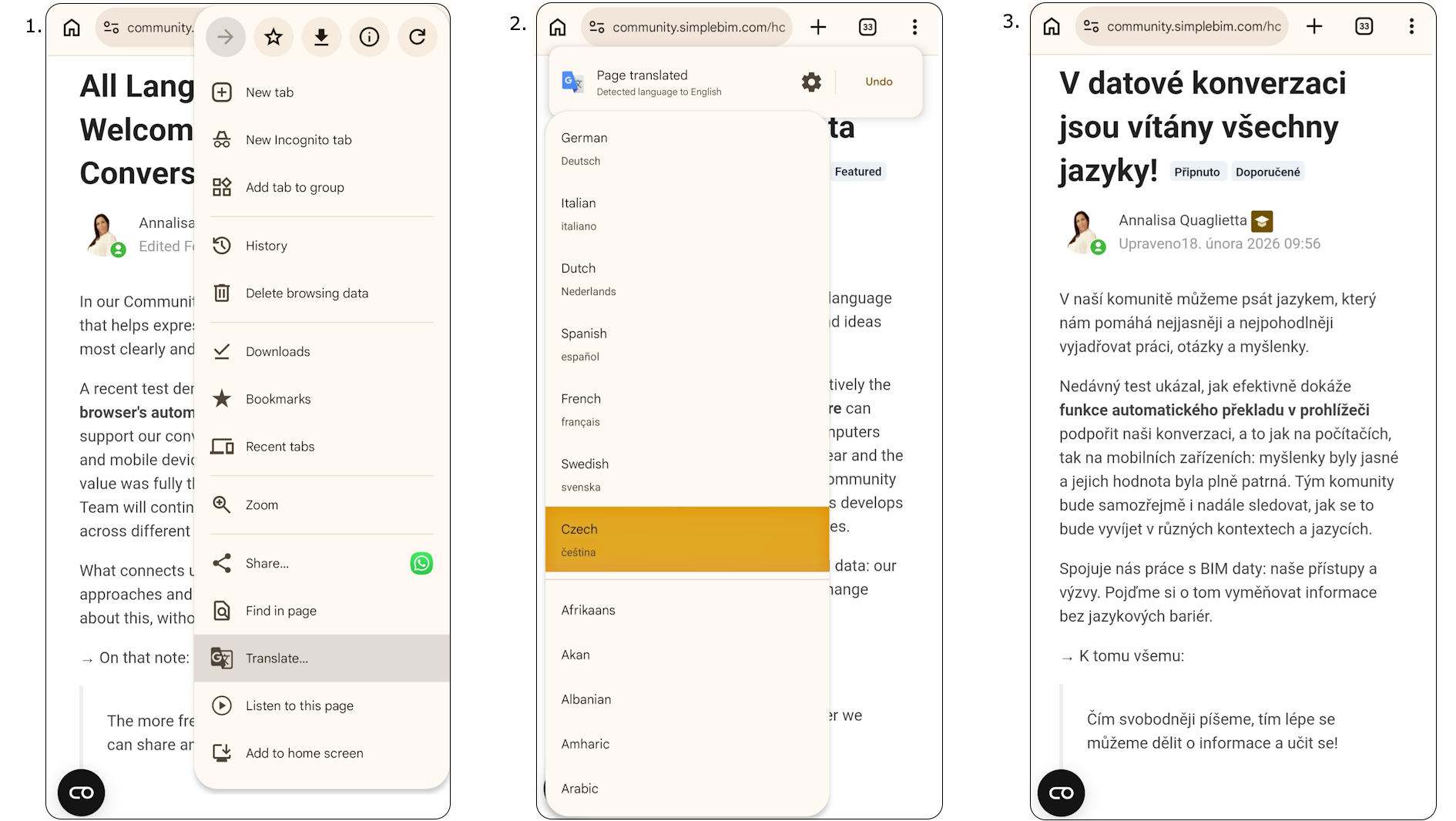
1. Click the three dots in the upper right corner of the browser. Look for an option related to “Translate”.
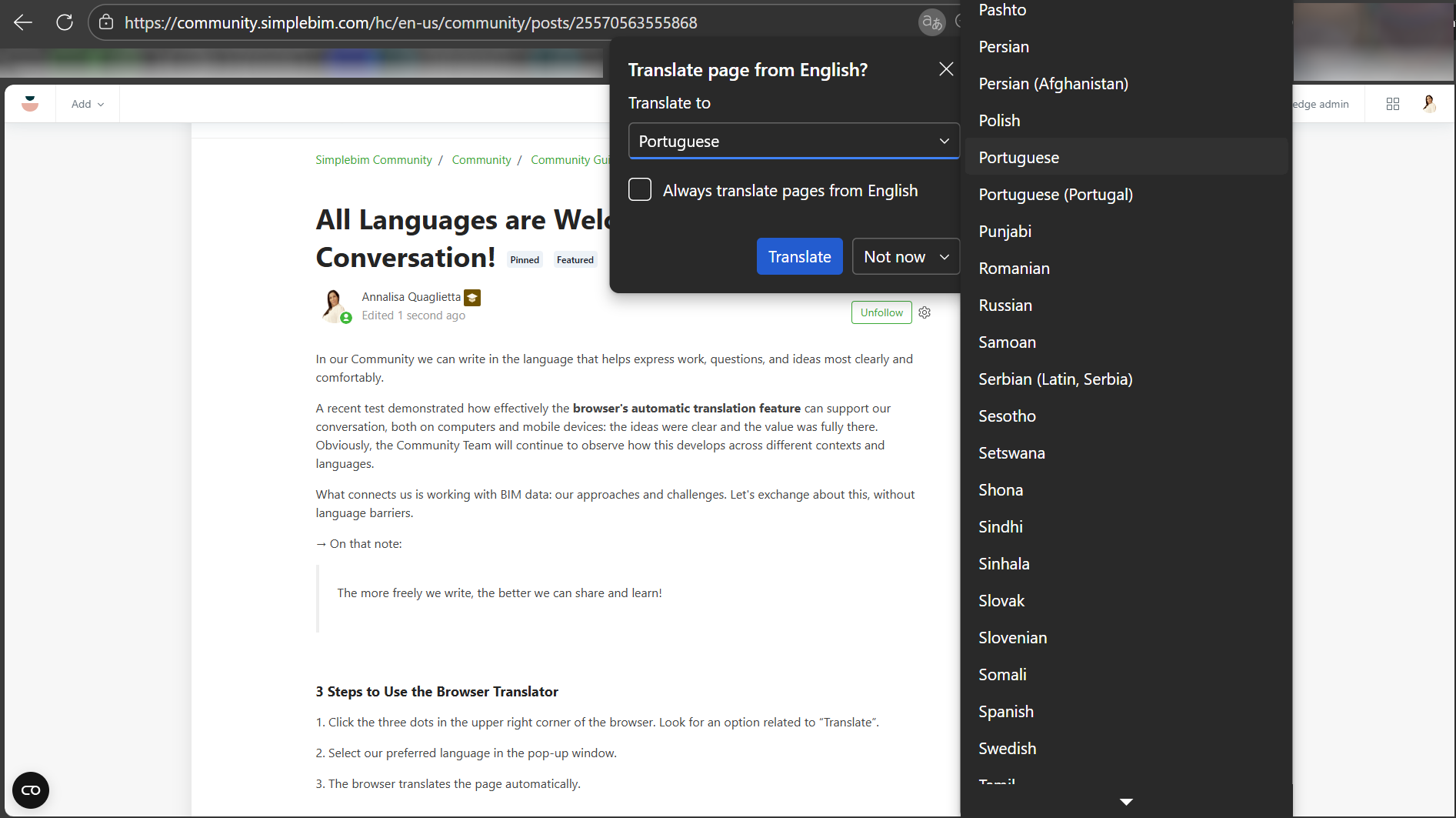
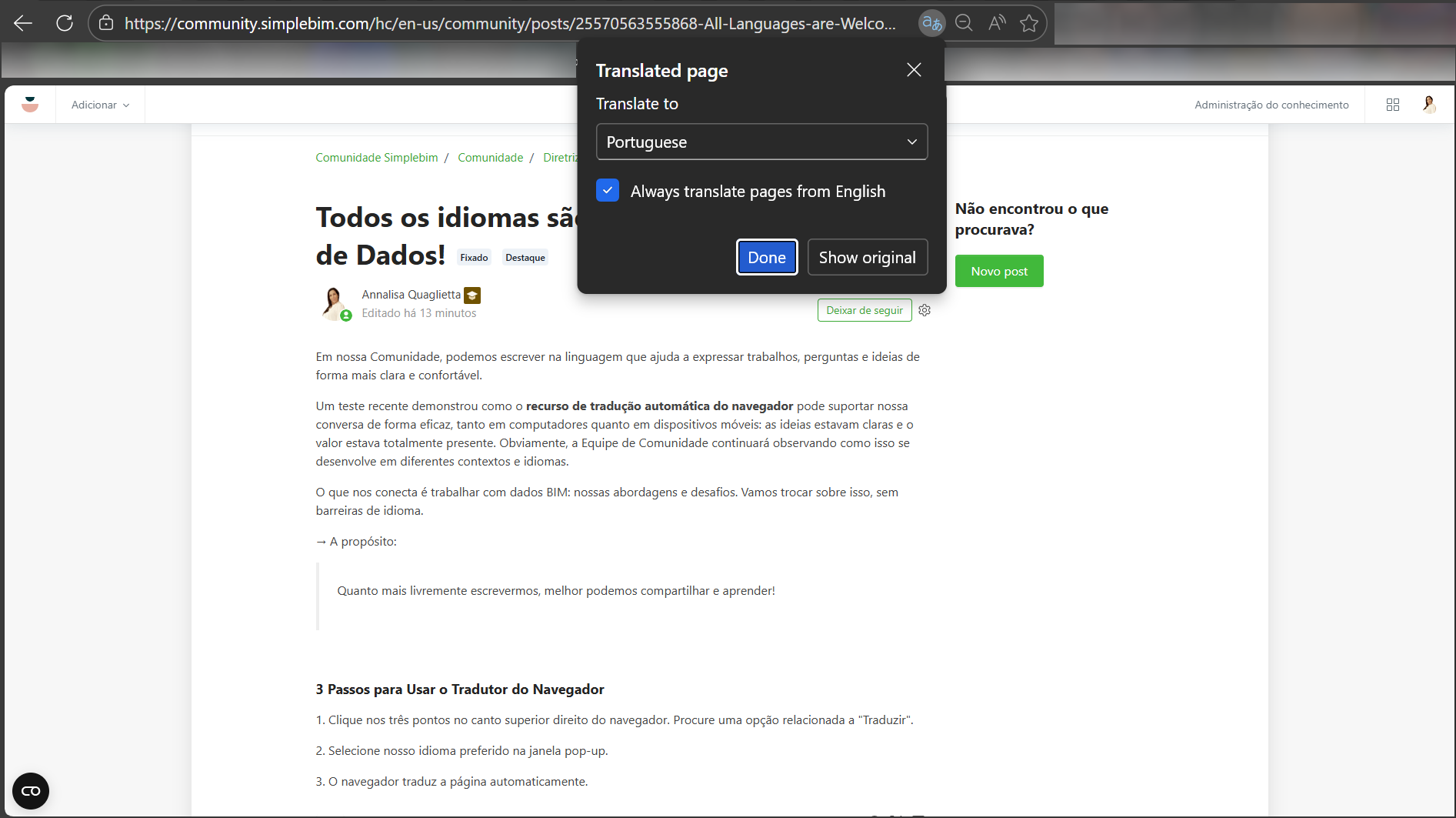
2. Select your preferred language in the pop-up window or through the gear icon.
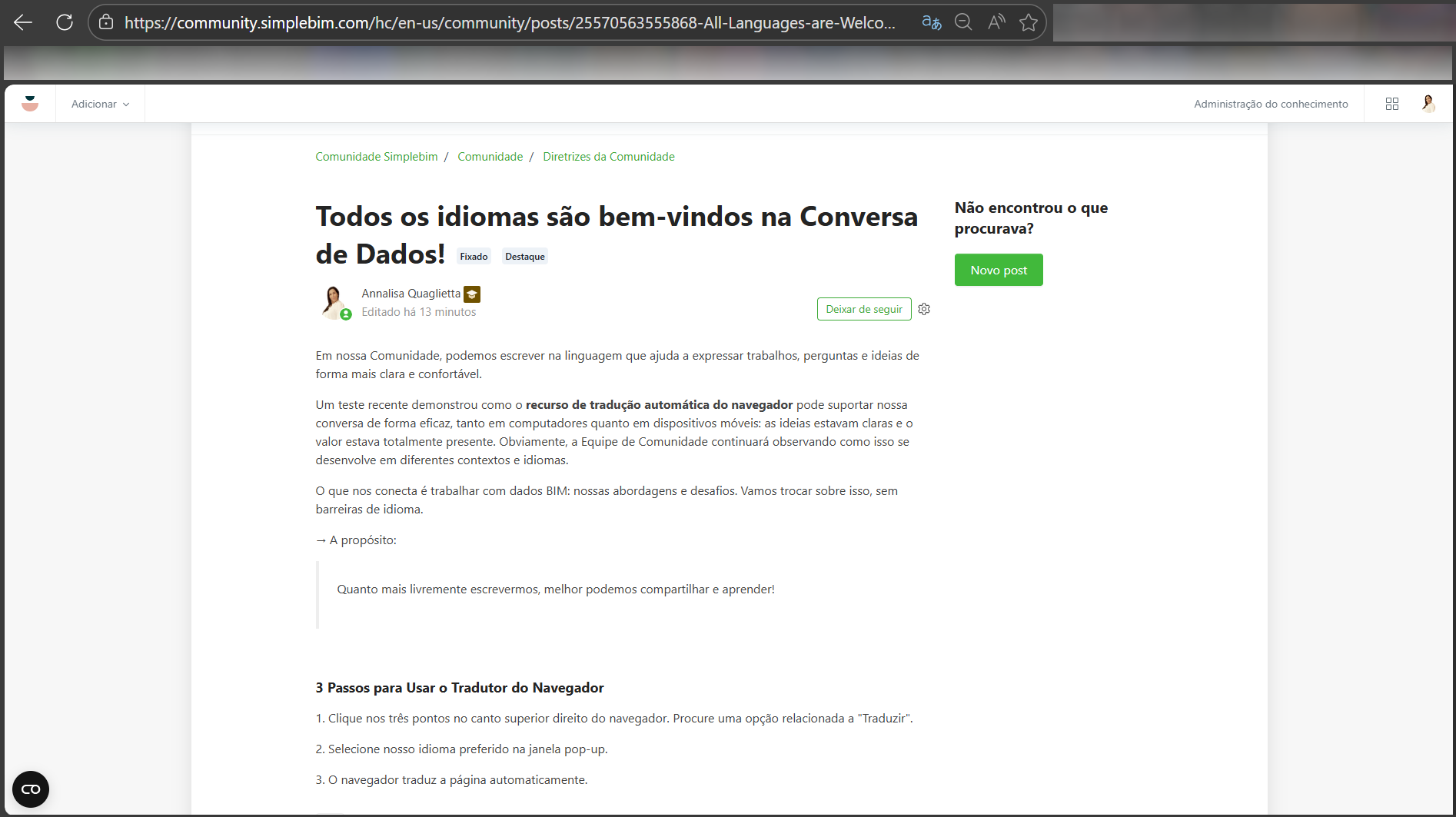
3. The browser translates the page automatically.
Example 1 (Device: Computer - Browser: Edge - Languages: English to Portuguese)
Example 2 (Device: Mobile - Browser: Chrome - Language: English to Czech)
Good to know
This only changes how the current page is displayed. For another page, just repeat the steps.
If preferred, automatic translation can also be activated permanently by checking the corresponding box in the translation window - and similarly deactivated again when no longer needed.
Comments
0 comments
Please sign in to leave a comment.