Find one to find them all Featured

When you are using a model you most often want to treat similar objects as one set. But how can you best create a group of similar objects?
In Simplebim you just need to find one object that belongs to the set and Simplebim will find all the other objects in the set for you. Sounds like magic, but the simple answer is the ‘Quick Select’ functionality in the Simplebim 3D window.
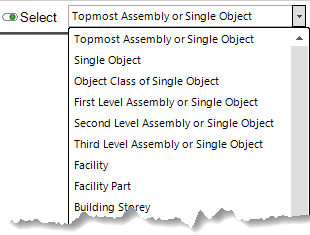
The principle of Quick Select is straight forward. You first select a ‘Quick Select’ rule and then one object in the 3D window. Simplebim fills in the rule with the appropriate information from the selected object and runs the rule (query) to find all other objects in the set. This can be for example:
- Object Class: takes the object class from the selected object and selects all objects with the same object class.
- Building Storey: takes the building storey from the selected object and selects all objects in the same building storey.
- System: takes the (first) system the selected object belongs to and selects all objects in the same system.
- Space Name: takes the space name of the selected object and selects all objects with the same space name.
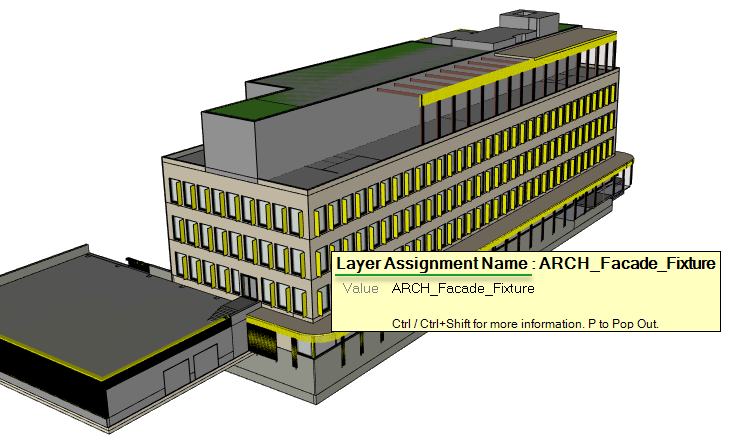
You can even drag&drop text properties from the Properties palette on the Quick Select dropdown in the 3D window to create a custom Quick Select. Holding down Ctrl during drop creates a rule that is not tied to an object class, which is great when you have standardized the model such that all objects have the same properties. But even if you have not done that yet you can test for example with the ‘Layer Assignment Name’ property that can typically be found in architectural models.
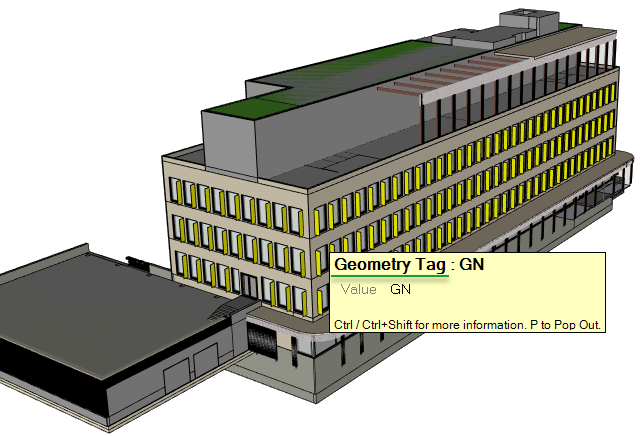
As a final tip you can run the ‘Add Geometry Tags’ dataflow step, which adds a ‘Geometry Tag’ property to all objects with 3D geometry. Then you create a custom Quick Select rule using the ‘Geometry Tag’ property. With this custom Quick Select you can quickly find objects with identical geometry without relying on any alphanumeric properties that may or may not exist in the model. Pretty cool.
Comments
0 comments
Please sign in to leave a comment.