
Overview
The Bimsheet palette connects BIM and Excel. It displays data from a model in a Excel Workbook such that the data is connected to the model. This means that the data in the workbook can be visualized using the 3D model, even results of Excel formulas. In the workbook most of the Excel functionality can be used right inside Simplebim and for most advanced operations the workbook can be saved as an Excel file, edited in Excel and opened again in Simplebim.
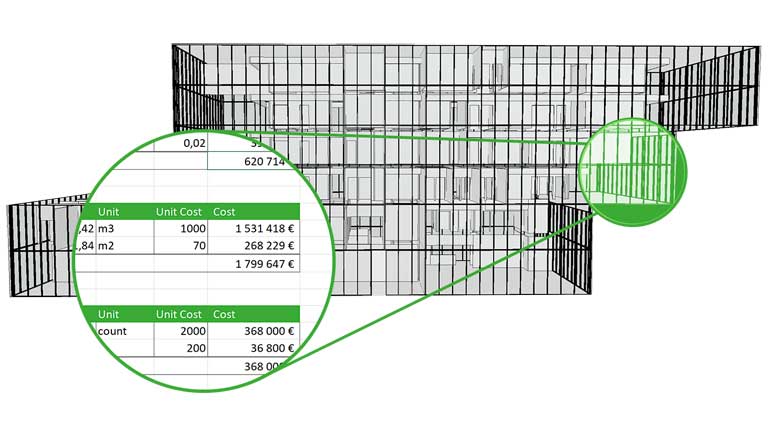
With the Bimsheet palette you can:
- Extract and export BIM data to Excel
- Visualise and check calculations
- Enrich models by importing data from Excel to BIM
Trimmer Mode
The Bimsheet palette always shows only included objects and properties, which means that the palette looks and behaves the same whether Trimmer Mode is on or off.
Toolbar
Source
The source from which the Bimsheet was opened.
Configure
Opens a configuration dialog for deciding which columns are visible in the Bimsheet and the order and grouping of the columns. The same dialog is used when first adding objects to the Bimsheet.
Options
Apply Formatting, when on, formats the Bimsheet cells, for example that headers are bold and number are right aligned. When the Bimsheet has a lot of data this can slow down the creation of the Bimsheet significantly, so it can be turned off for performance.
Auto Fit Columns, when on, adjusts the width of columns based on their contents.
Speak, when turned on, allows other palettes can react to selections made in the Bimsheet palette, e.g. highlight the selected objects in the 3D window. The action taken by the other palettes is decided in those palettes, for example the 3D window can select, isolate or reveal. Bimsheet will speak objects that are dropped to the Bimsheet but also objects that are referenced by an Excel formula, even SUMIF.
Other
Open Bimsheet opens a saved Bimsheet that vas previously saved using Save Bimsheet
Open Bimsheet or Plain Excel File opens a Excel file in the Bimsheet palette. If the opened Excel file contains Bimsheet logic it is filled with data from the current model based on the saved logic. If the logic is for example to show a selection of properties for all walls the opened Bimsheet will show this information for the current model.
Enrich with Bimsheet File opens an Excel file save using 'Save as Bimsheet File for Enrichment' and imports the data from that Excel file into the current model. The operation uses global IDs (GUID) so this works for enriching the same model from which the Bimsheet file was exported or another version of the same model.
Create Legacy Excel Export creates a Bimsheet with information identical to the one created by the legacy Export Excel tool. This Bimsheet can then be saved as a plain Excel file to get the same functionality, but with a preview, as running the legacy tool.
Save Bimsheet saves the logic, not data, or the current Bimsheet into a Excel file. This makes it possible to re-use the same logic with other models.
Save Bimsheet File saves the logic, not data, or the current Bimsheet into a Excel file anywhere on your computer for sharing with others.
Save as Bimsheet File for Enrichment saves the data in the current Bimsheet to Excel such that when the data is enriched in Excel and then read back to Simplebim using 'Enrich with Bimsheet File' the added/changed data is merged into the current model.
Save as Plain Excel File saves the data in the current Bimsheet into a Excel file without any Bimsheet logic.
Open Saved Bimsheets Folder... opens the local folder used for storing the Bimsheets saved with Save Bimsheet and accessed with Open Bimsheet.
Reload reloads the data of the Bimsheet
Clear clears the content of the Bimsheet
Data
The first step is to select which data you want to show in the Bimsheet palette. When you drop objects you create a 'Widget' that shows the dropped data. You can add as many widgets to one worksheet as you want and add as many Worksheets to the Workbook as you want. The Bimsheet palette can show either the properties of objects or the properties of groups.
Even though you can mix content from the model with other content the best practice is to use separate worksheets for BIM content and other Worksheets for other content. If you for example use Bimsheet for comparing the design with a room schedule you could have one worksheet for the room data from the model, another worksheet for the room schedule and a third for comparing the two.
All objects from an object class
- Drag and drop an object class from the Objects palette into the Bimsheet palette
Manual selection of objects
- Drag and drop objects from the 3D Palette or property values from the Properties palette into the Bimsheet palette.
- You can drop objects from the same object class or objects from different object classes.
Objects in a group
- If your model contains object groups (for example systems and zones) you can drag and drop a group from the Objects palette into the Bimsheet palette
- The Bimsheet palette will show all objects that belong to the dropped group and update it's contents if objects are added or removed from the group.
Object groups
- Select multiple groups from the Objects palette (hold down Shift) and drag and drop them into the Bimsheet palette.
- The Bimsheet palette will show the properties of the dropped groups, not the properties of the objects in the dropped groups
Object group category
- Drag and drop a group category from the Objects palette into the Bimsheet palette
- The Bimsheet palette will show the properties of the groups in the dropped group category
Related to
Comments
0 comments
Please sign in to leave a comment.